How to register a Patient.
The registration module is used to capture new or existing patient information in the EMR. Basic information such as patient name, age, phone number, gender, patient emergency contact, etc. Captured data can be saved and forwarded to the next point of care.
To register a new patient, follow these steps:
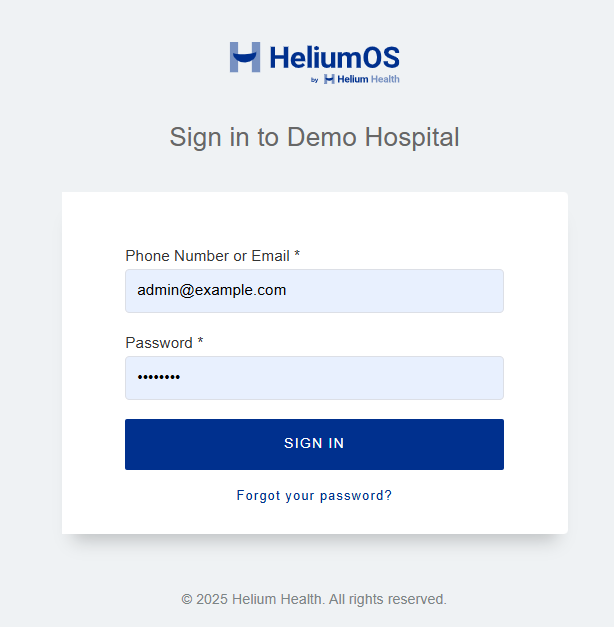
1). Log into the Helium Health application.
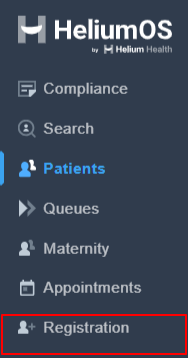
2). Select ‘Registration’ from the left navigation menu.
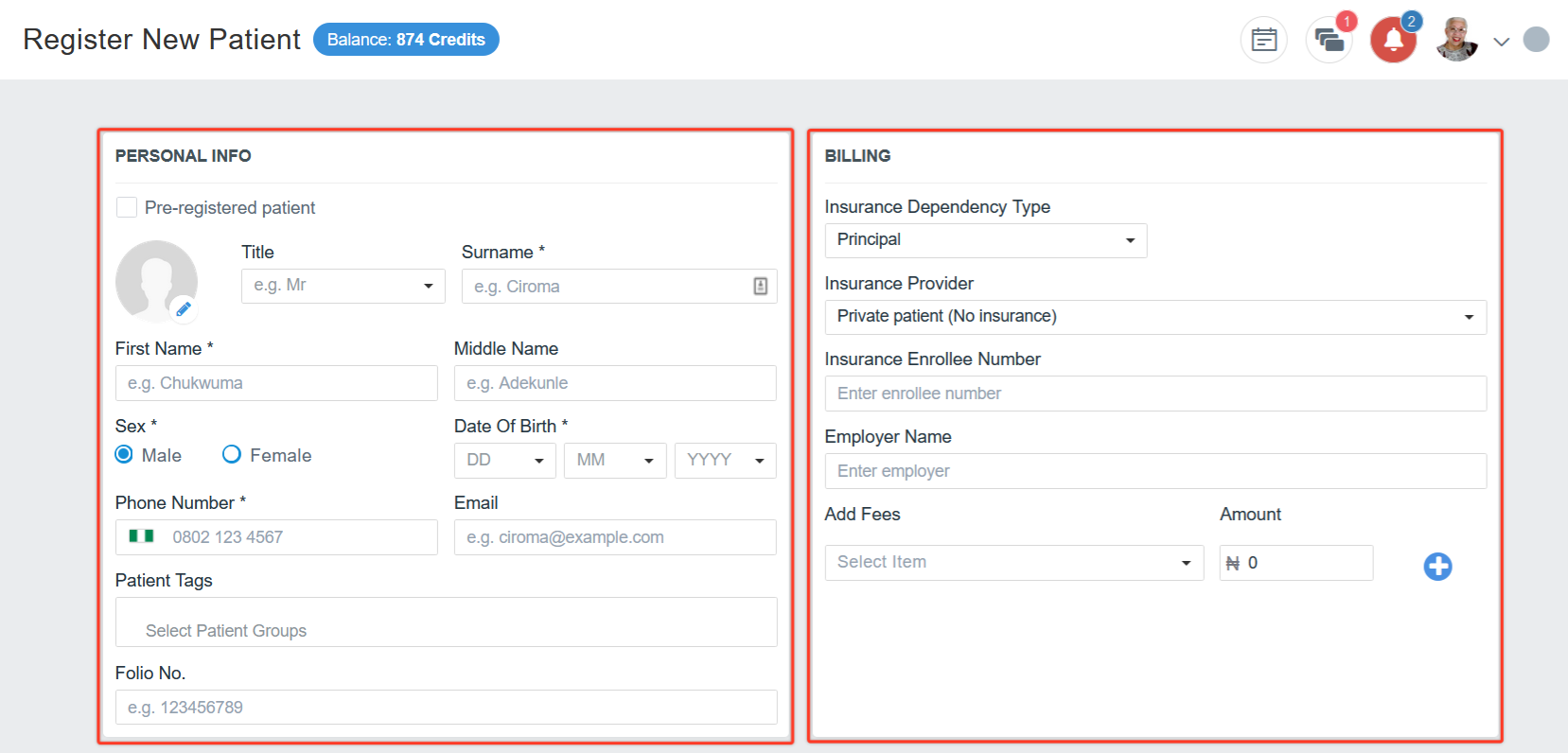
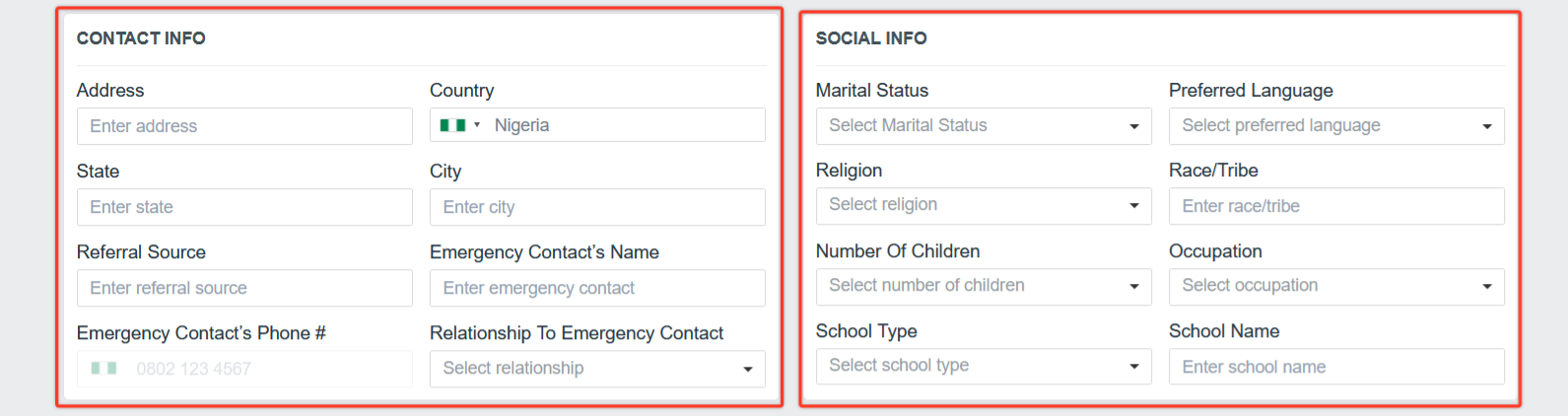
3). Fill in the patient's “Personal Info”, “Contact Info”, “Social Info” and “Billing Info”.
4). Uncheck “Do not Send Welcome SMS/Email To Patient” to send a Welcome message to a newly registered patient.

5). Click ‘Register Only’ to register the patient or ‘Authenticate Registration’ to register and forward the patient file to the next point of care.

Need further assistance? Raise a request with Support, and we'll be glad to help!
Was this article helpful?
That’s Great!
Thank you for your feedback
Sorry! We couldn't be helpful
Thank you for your feedback
Feedback sent
We appreciate your effort and will try to fix the article